
When you collect open-ended text responses in a survey, you can use our AI-driven Text Dashboard to:
- Identify common topics across responses
- Detect overall sentiment and sentiment towards individual topics mentioned
- Filter, search, and favorite responses
- View summary charts of topic and sentiment distribution
Read on to learn how to use the new Text Analysis Dashboard!
What's in this article:
View Text Responses
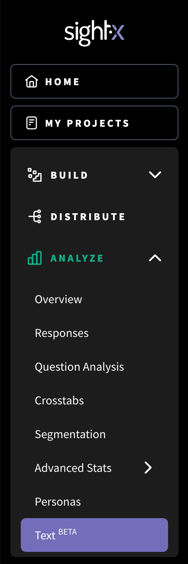
To view the open-ended responses in your survey, navigate to the Analysis section of your project and then to the Text Dashboard.
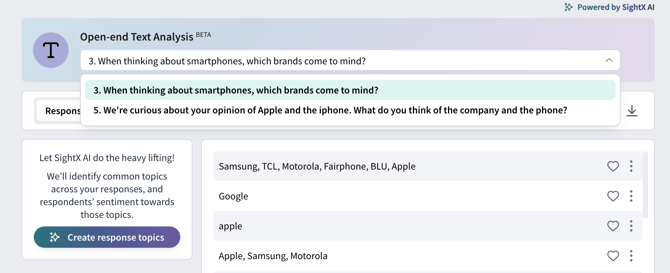
Use the selector at the top of the page to choose the text question from your survey that you'd like to review.
On the Responses tab, you can view all of the responses to the question you selected. In addition to the search function, there are several page-level actions you can take:
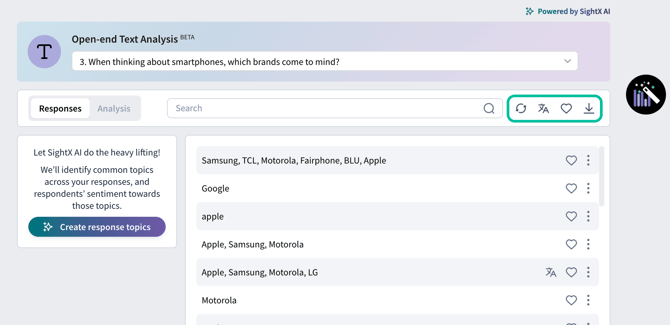
Refresh: Updates the page with all current responses to the question. Helpful when your project is still in field.
Translate: Translates all responses to English. This button only appears when non-English responses are detected in the question.
Favorite: Filters for responses that have been marked as favorites.
Download: Downloads an Excel file with all of the responses to the question.
There are also actions at the response-level. These are:
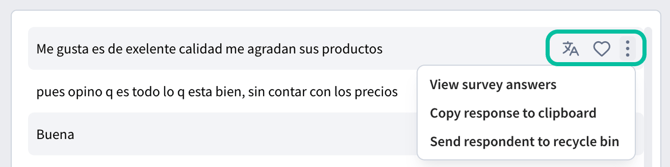
Translate: Translates the individual response to English. This button only appears when the response has been detected as non-English.
Favorite: Favorites the response, so that you can easily access a list of insightful quotes from the response set.
Three dots menu: Allows you to view all of the survey answers from that respondent, copy the response text, or send the respondent to the recycle bin if their response was poor quality and you want to scrub it from the data set.
Generate Topics and Sentiment
When you've finished data collection, click the button to "Create response topics". This initiates our AI prompt to identify common topics within that question, and the sentiment of each respondent towards the topics they mentioned.
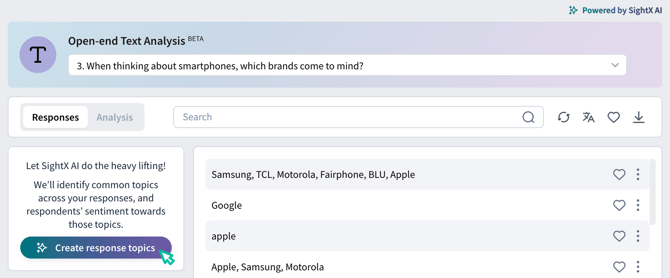
The topic processing time varies based on the amount of responses. Larger datasets may take up to 30 minutes to generate.
Note that SightX uses a closed chatGPT model, so your survey data that is processed is NOT shared with OpenAI.
Once your topics have been generated, you can view them to the left of the responses along with the percentage of responses that mentioned each topic.
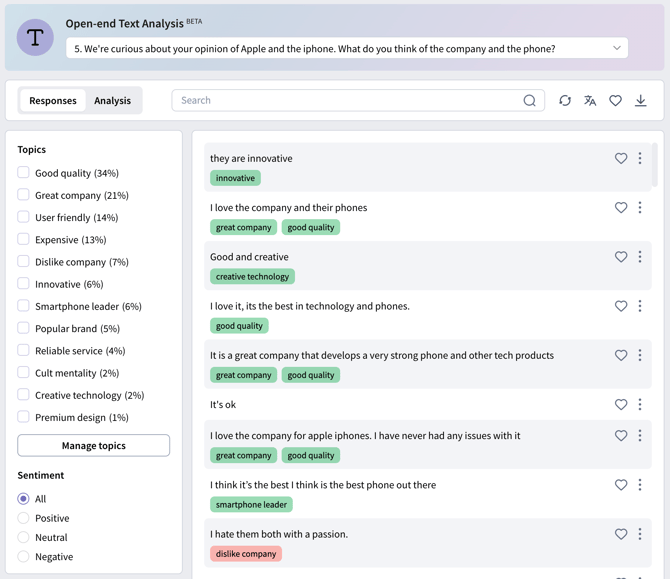
Each response will be tagged with the topics present in that response; the color of the tag indicates whether the respondent spoke positively, negatively, or neutrally about that topic. You can filter for responses with a specific tag or sentiment in the left pane.
You can also make the following adjustments to the generated topics by clicking the "Manage topics" button:
- Edit topic labels
- Combine similar topics
- Delete topics
Tip: If your project collects additional responses after you've generated topics, you'll be prompted to regenerate topics for the new responses.
View Summary Analytics
After you generate topics, the Analysis tab of the dashboard becomes available. Here, you'll find quantitative charts showing the frequency of topic mentions and sentiment distribution, as well as a summary of the responses.
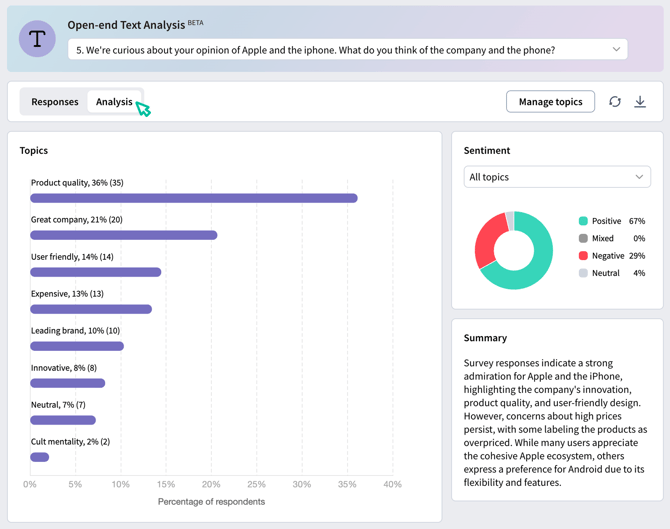
In the sentiment section, you can select a specific topic in the dropdown to view the breakdown of sentiment towards that specific topic.
The download button in the toolbar allows you to export the summary charts to Powerpoint to include in your research deliverables.