
The Image Upload question type allows you to collect photos and images directly from survey respondents. This is useful for visual research methods such as product usage studies, in-home use tests, and shelf audits.
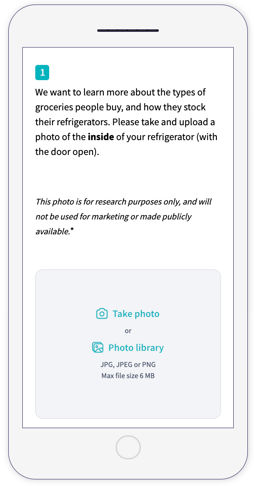
Respondents can either upload an existing image or take a photo with their phone or tablet.
Adding an Image Upload question to a survey
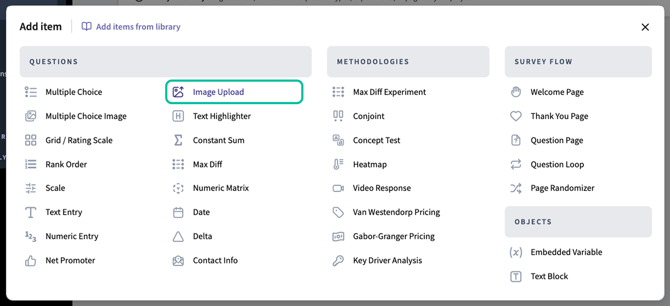
To include an Image Upload question in your survey, navigate to the survey Build section and open the question menu. Select the Image Upload question type.
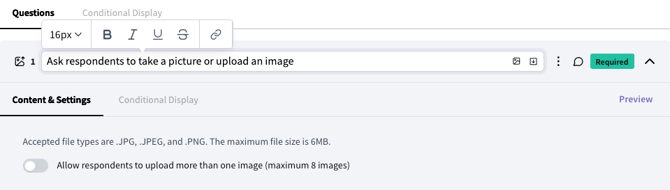
Write your question prompt
Use the question text field to clearly explain what kind of image you want respondents to upload.
💡 Tips for strong question prompts:
-
Be specific about what to photograph (e.g., “inside of your refrigerator”).
-
Include context if needed (e.g., “with the door open”).
-
Reassure respondents about privacy if the image could feel sensitive.
Example:
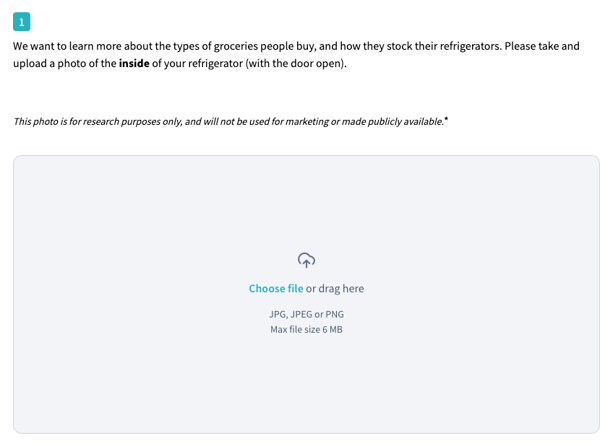
Please take and upload a photo of the inside of your refrigerator (with the door open). This photo is for research purposes only and will not be used for marketing.
Use the question text field to clearly explain what kind of image you want respondents to upload.
Question settings
The accepted file types and maximum file size are fixed, and displayed to respondents during upload.-
Supported file formats: JPG, JPEG, PNG
-
Maximum file size: 6 MB per image
By default, respondents can only upload a single image. To change this, toggle on the setting "Allow respondents to upload more than one image". When this option is enabled, respondents can upload up to 8 images per question.
Use multiple uploads when you want respondents to capture different angles, steps, or locations.
☝️Important: Prepare respondents before asking for images
When using an Image Upload question, it’s important to make sure respondents are able and willing to upload a photo. If respondents reach an image upload question unexpectedly—or are unable to take a photo in their current environment—they may abandon the survey or provide poor-quality data.
To avoid this, we strongly recommend using screening questions and disqualification logic before the Image Upload question. Using screening and opt-in questions:
-
Improves completion rates
-
Reduces survey abandonment
-
Ensures higher-quality images
-
Respects respondent expectations and consent
Screen for the respondent’s environment
If your Image Upload question requires respondents to photograph something in a specific location (for example, their home, pantry, refrigerator, or workspace), first confirm that they are currently in that environment. Do this by adding a non-leading, single-select question earlier in the survey asking where the respondent is currently taking the survey.
Example:
Where are you currently taking this survey?
At home
At work
In transit / on the go
In a public space
Somewhere else
If the respondent is not in the required environment, use disqualification logic to screen them out of the survey. This ensures that only respondents who are realistically able to complete the image upload continue.
Include an opt-in before the Image Upload question
If the image upload is required to complete the survey, you should explicitly tell respondents that they will be asked to take or upload a photo, and give them the opportunity to opt out. Otherwise, respondents who do not want to participate may abandon the survey, which can make fielding more challenging.
-
The opt-in should include:
-
A brief explanation of what they will be asked to photograph
-
Why the image is being collected (for research purposes)
- A clear Yes/No choice to proceed, with the explicit instruction that if they choose not to proceed, they will be disqualified from the survey.
-
Example:
We want to learn more about the groceries people buy. In the next question, we'll ask you to take and upload a photo of the inside of your refrigerator.
The photo will help our research team better understand your opinions and preferences, and may be shared with internal stakeholders for research purposes. It will never be made public or used in marketing.
If you do not want to share a photo, you can choose not to participate in this survey.
Are you willing to share a photo of your refrigerator?
Yes, I'm willing to upload a photo
- No, I prefer not to participate in this survey
If the respondent answers "No", set disqualification logic to screen them out of the survey.
Respondent experience
This is how Image Upload questions appear to respondents in the survey:
Viewing uploaded images
After responses are collected, uploaded images are available in the Images tab in the Analyze section.
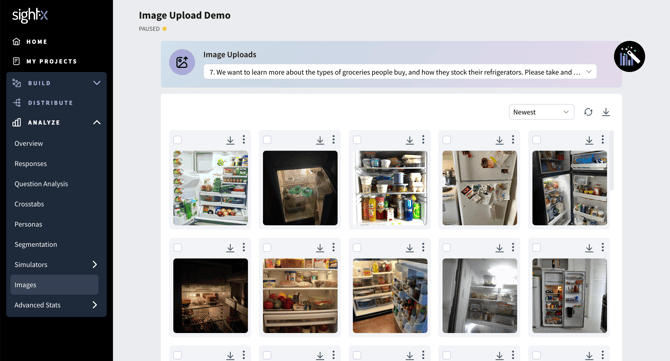
In the Images dashboard, you can:
-
Browse all uploaded images
-
Filter images by question using the analytics toolbox
-
Select and download individual images
-
Download images in bulk
- View the respondent ID code for each image
- Send respondents to the recycle bin when they submitted images that do not follow the question requirements.