
First, be sure you've uploaded contact information to a SightX community. Learn more in this article.
What's on this page?
Setting Up an Email/SMS Campaign
On the Email/SMS tab of your project, first choose the community you want to distribute to. In the dropdown, you can see the number of contacts in the community that have an email address and that have a phone number.
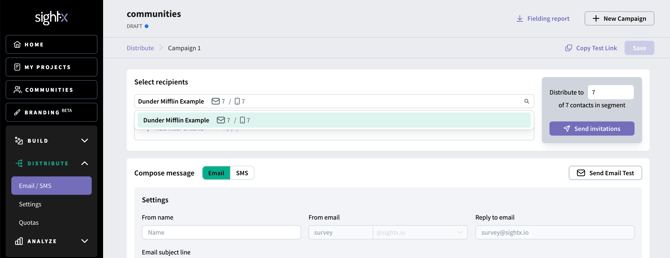
In the case that you don't want to send invitations to the entire community, you can click "Add filter criteria" to narrow down your segment of contacts based on community properties that you've uploaded (age, gender, state, etc). You can also limit how many contacts in the segment are invited at one time, by manually entering the number of contacts in the segment who should be invited.
Next, configure your email or SMS survey invitation message. Best practice is to remind your contacts of who you/your brand are and why they are being contacted so that they do not ignore your message as spam. You can read specific best practices for SMS messages in this article.
Tip: Each campaign can only include one outreach method - either email or SMS. To send both types of messages, create two separate campaigns.
We recommend sending yourself a test email or SMS message to confirm that the message is displaying in the way you want it to.
When your survey build is complete and you're ready to send out your survey invitations, click the "Send invitations" button on the email/sms tab in the campaign to distribute your survey to your specified contacts!
Monitoring an email/SMS campaign
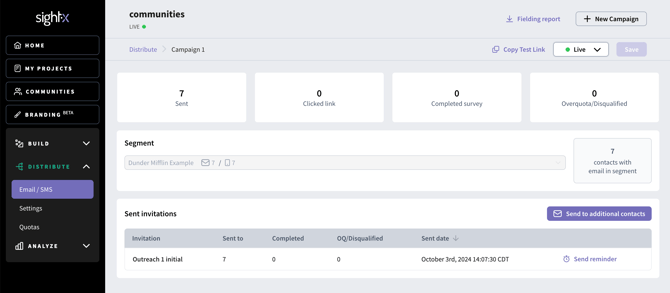
Once your invitations have been sent, you can monitor participation from the email/SMS tab in the campaign.
Send reminders
You can send a reminder email to contacts who haven't responded yet by clicking "Send reminder" next to their outreach listed in the table. You'll have an opportunity to edit the message before it is sent to the contacts who have not yet completed the survey.
Send to additional contacts
If you did not send invitations to all of the available contacts in your segment, you can send invitations to additional contacts with a new outreach. Click the button to "Send to additional contacts", and from there you can specify how many new contacts should be invited, as well as edit the invitation message.